
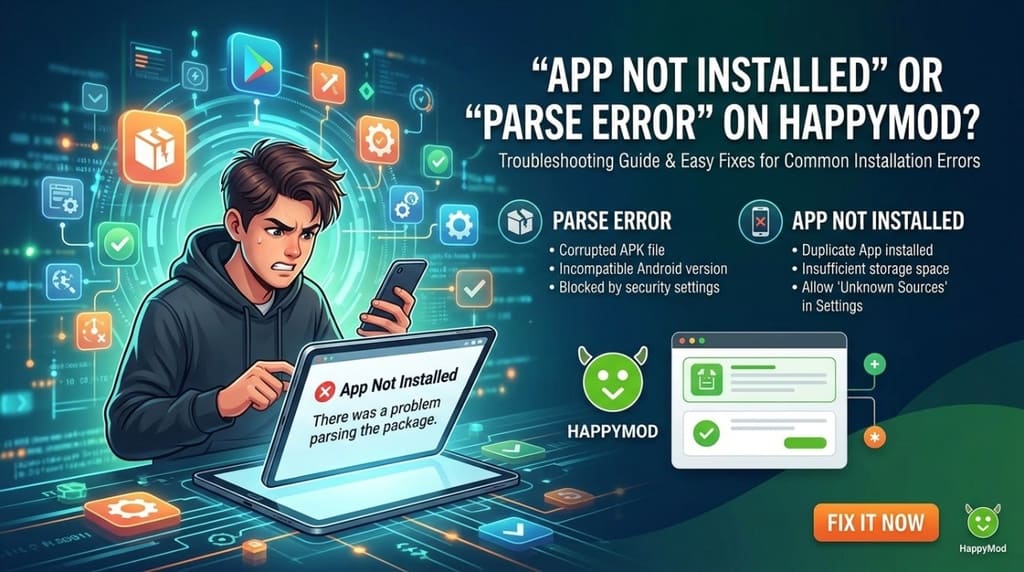
Why does Android say “App Not Installed”?
This message can have several causes. Some are device settings you can change; others mean that a particular APK is not compatible or cannot be repaired on your device.
- The modded APK is damaged or incorrectly modified. Changes to an app can make its package invalid. If the APK itself is broken, it may fail on every device.
- The APK was rebuilt from an app bundle. Many Android apps are published as app bundles rather than one universal APK. Repacking bundle components into an APK can leave out device-specific files, so the result may install on some devices but not others.
- A signature conflict with the original app. Android will not install an APK over an existing app with the same package name if it was signed with a different key.
- Installation permission is missing or a security check blocks the install. Android requires you to allow installs from the specific app you use to open the APK. Google Play Protect may also warn about apps it cannot verify.
- The mod is outdated. An older build may no longer work with your Android version, device, or the app's current requirements.
How to fix “App Not Installed”
- Try another mod or version. If the APK itself is broken, changing Android settings will not fix it. Choose another mod type for the same app version or try a different historical version. New HappyMod offers multiple mod types and older versions. Old HappyMod may also have alternatives, but its catalog is no longer updated, so finding a working option there can be harder.
- Test a bundle-based APK on another device. If the package was rebuilt from an app bundle, device compatibility can vary. You can test it on another compatible Android device, or try another mod type or version instead.
- Resolve an app-signature conflict. Back up any important app data first. Then uninstall the original app and install the mod APK. Uninstalling may erase local data, and some apps do not support restoring data to a differently signed version.
- Allow installs from the app opening the APK. In Android Settings, search for “Install unknown apps” or “Install unknown apps from this source.” Select the browser, file manager, or HappyMod that you use to open the APK, then allow installs for that source. The exact menu varies by Android version and manufacturer; common paths are below.
- Check Play Protect carefully. If Google Play Protect displays a warning, read it and verify that the APK came from a source you trust. Do not disable Play Protect globally just to install an APK. If Google reports the app as harmful, do not proceed.
- For an outdated mod, use a newer release. If the mod no longer supports your device or current app requirements, wait for an updated mod or choose another available version. New HappyMod continues to receive catalog updates; Old HappyMod does not.
Where to allow APK installs on popular Android phones
Menu labels move between Android and manufacturer software versions. If a path below does not match your phone, open Settings and search for Install unknown apps, Unknown sources, or the name of the app you use to open the APK.
- Google Pixel and other stock Android phones: Settings → Apps → Special app access → Install unknown apps → choose the browser or file manager → Allow from this source.
- Samsung Galaxy: Settings → Security and privacy → More security settings → Install unknown apps → choose the source app → Allow.
- Xiaomi, Redmi, and POCO: Settings → Privacy protection or Apps → Special permissions → Install unknown apps → choose the source app → Allow. The category name varies between MIUI and HyperOS versions.
- OPPO and OnePlus: Settings → Security and privacy or Apps → Special app access → Install unknown apps → choose the source app → allow installs. Labels differ across ColorOS and OxygenOS versions.
- realme: Settings → Security and privacy → More security and privacy → Installation sources, or Settings → Apps → Special app access → Install unknown apps → choose the source app → Allow.
- vivo: Settings → Security or Privacy → More security settings → Install unknown apps → choose the source app → Allow. The exact location can differ by Funtouch OS version.
- Huawei: Settings → Security → More settings → Install apps from external sources → choose the browser or file manager → Allow app installs. Labels vary across EMUI and HarmonyOS versions.
Why does “Parse Error” happen, and how can you fix it?
A parse error usually means Android cannot read or validate the APK package. With Old HappyMod, this can happen when a large download is split into parts and one or more parts are missing or incomplete. The assembled file may then be unusable.
- Delete the incomplete download and download it again. Remove the existing file or parts, then retry on a stable connection and let every part finish. This can solve the problem, but it cannot guarantee success if a part repeatedly fails or the APK itself is invalid.
- Use New HappyMod for large downloads. New HappyMod downloads large files as a complete APK instead of splitting them into parts, which avoids errors caused by missing pieces during assembly.
If a complete, freshly downloaded APK still produces a parse error, it may be damaged, incompatible with your Android version, or not intended for your device. Try another mod type or version rather than repeatedly installing the same file.
A quick summary
There is no single fix for every “App Not Installed” or “Parse Error” message. Check the installation source permission, look for a signature conflict, and make sure the download completed. If the APK is broken, outdated, or incompatible with your device, try another mod type or version.
HappyMod is a platform for downloading mod APKs, and individual mods can have availability, compatibility, or file-integrity issues. These problems are not unusual with modified apps. HappyMod works to improve download and installation reliability, but not every mod will work on every device. Stay patient, use files from sources you trust, and choose a different available version when needed.